
Metasiaエディタのプラグインでは、任意のクリップやエフェクトを追加したり、エディタUI内にパネルを追加したりなどが可能ですが、今回はオリジナルのクリップを追加するところまで説明していきます。 今回作成したプラグインは https://github.com/SousiOmine/MetasiaPluginSample で公開しています。
Metasiaエディタが動くOSであればなんでも大丈夫ですが、dotnet CLIをインストールしている環境で作業してください。 プロジェクトを作成します。
dotnet new console
dotnet add package Metasia.Editor.Pluginコンソールアプリテンプレートで生成されるProgram.csは削除してください。 また、csprojファイル内のOutputTypeがExeになっていると思うので、これをLibraryに置き換えてください。
次に、プラグインのエントリポイントを書いていきましょう。ファイル名はなんでもいいですが、ここではMetasiaPluginSample.csとしました。
using Metasia.Editor.Abstractions.Hosting;
using Metasia.Editor.Plugin;

namespace MetasiaPluginSample;

public class MetasiaPluginSample : IClipTypeProvider
{
    public string PluginIdentifier => "com.SousiOmine.MetasiaPluginSample";

    public string PluginVersion => "1.0.0";

    public string PluginName => "サンプルプラグイン";

    public IEnumerable<IEditorPlugin.SupportEnvironment> SupportedEnvironments => [
        IEditorPlugin.SupportEnvironment.Windows_x64,
        IEditorPlugin.SupportEnvironment.MacOS_arm64,
        IEditorPlugin.SupportEnvironment.Linux_x64
    ];

    public IEnumerable<Type> GetClipTypes()
    {
        throw new NotImplementedException();
    }

    public void Initialize(IEditorHostContext hostContext)
    {
        Console.WriteLine("サンプルプラグインが読み込まれました!");
    }
}
ここまで書いたらMetasiaエディタからプラグインとして認識されます。それを確認するために
dotnet buildでビルドを実行します。すると bin/Debug/net10.0 にビルド成果物が出現!
Metasiaエディタを起動して、メニューバー→表示→プラグインフォルダを開く を選択すると、プラグインを配置すると認識されるフォルダが開かれます。Metasiaエディタはこのフォルダか、Metasia.Editor.exeと同じ階層のPluginsフォルダからプラグインを探索するので、そこに先ほどのビルド成果物を配置してください。複数プラグインを導入することを考えると、フォルダを作ってプラグインごとに分けた方がいいかもしれませんね。 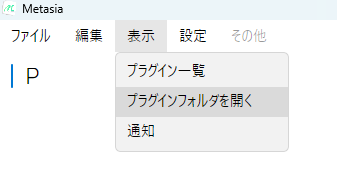
ビルド成果物の配置が終わったらいったんMetasiaエディタを終了させ、再度開きます。次にメニューバー→表示→プラグイン一覧 を選択すると、プラグインのエントリポイントで定義した名前とバージョンが表示されているはずです。 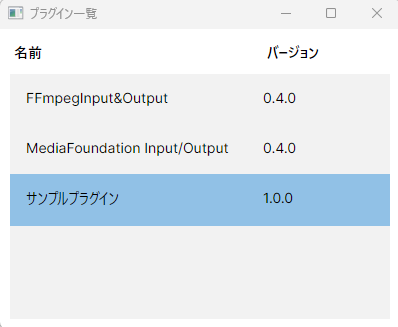
現段階ではプラグインがエディタから認識されただけなので、次はプラグイン側で新しいクリップを定義していきましょう。新しくHelloWorldClip.csというファイルを作成してください。
using Metasia.Core.Attributes;
using Metasia.Core.Objects;
using Metasia.Core.Objects.VisualEffects;
using Metasia.Core.Render;
using SkiaSharp;

namespace MetasiaPluginSample;

// この属性をつけないと、誰もクリップと認めてくれない
[ClipTypeIdentifier("HelloWorldClip", FallbackText = "ハローワールド")]
public class HelloWorldClip : ClipObject, IRenderable
{
    public List<VisualEffectBase> VisualEffects { get; set; } = new();

    // プロジェクト読み込み時のデシリアライズのために、パラメータなしのコンストラクタが絶対に必要なので注意!
    public HelloWorldClip()
    {

    }

    public Task<IRenderNode> RenderAsync(RenderContext context, CancellationToken cancellationToken)
    {
        cancellationToken.ThrowIfCancellationRequested();

        // 返したい画像の論理サイズ
        int logicalWidth = 800;
        int logicalHeight = 400;

        float renderScaleWidth = context.RenderResolution.Width / context.ProjectResolution.Width;
        float renderScaleHeight = context.RenderResolution.Height / context.ProjectResolution.Height;

        // 実際に返す画像のサイズを求める
        int imageWidth = (int)(logicalWidth * renderScaleWidth);
        int imageHeight = (int)(logicalHeight * renderScaleHeight);

        var info = new SKImageInfo(imageWidth, imageHeight, SKColorType.Rgba8888, SKAlphaType.Premul);
        using var surface = context.SurfaceFactory.CreateSurface(info);
        using var canvas = surface.Canvas;

        canvas.Scale(renderScaleWidth, renderScaleHeight);

        SKPaint skPaint = new()
        {
            IsAntialias = true,
            Color = SKColors.Yellow
        };

        canvas.DrawText("Hello World from Plugin!", new SKPoint(100, 100), SKTextAlign.Center, new SKFont() { Size = 32 }, skPaint);

        var image = context.SurfaceFactory.Snapshot(surface, context.PreferRasterOutput);

        return Task.FromResult<IRenderNode>(new NormalRenderNode()
        {
            Image = image,
            LogicalSize = new SKSize(logicalWidth, logicalHeight),
        });
    }
}
そして、エントリポイントのあるMetasiaPluginSample.cs のGetClipTypesメソッド内を編集し、作成したHelloWorldClipをエディタに知らせるようにします。
public IEnumerable<Type> GetClipTypes()
{
    yield return typeof(HelloWorldClip);
}
ビルドしてプラグインフォルダの中身を更新し、エディタを起動してプロジェクトを開いて「クリップを追加」すると…? 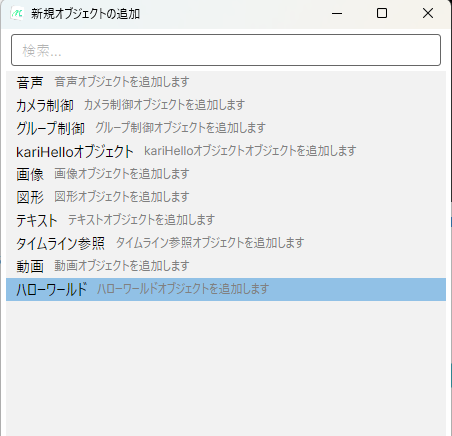
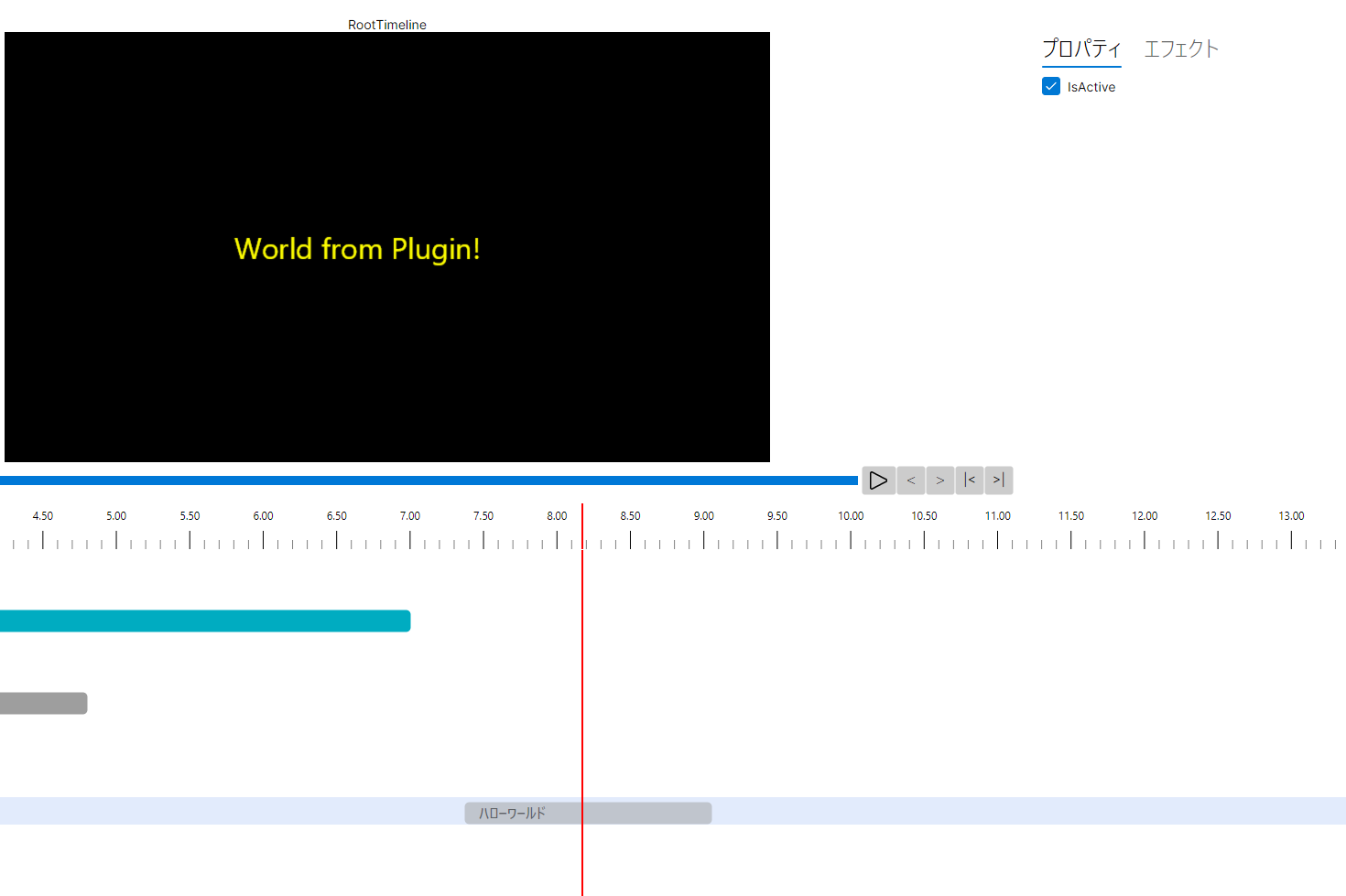
おめでとうございます!新たに定義したプラグインをエディタから参照できました! 実際にはここからプロパティを追加したりビジュアルエフェクトに対応させたりなどいろいろな作業が必要ですし、プラグインからはクリップ以外にもエフェクトやUIパネル、メディア入出力処理も追加可能です。興味のある方はぜひ、Metasiaエディタ向けプラグイン開発に挑戦してみてくださいね。